If you've got more than a handful of VR scenes scattered across your hard drive, XBVR will change your life. It's the best tool for organizing, browsing, and streaming your VR porn collection — and it's completely free and open source.
This guide covers everything: installation, first-time setup, connecting your headset, and the tips nobody tells you. Whether you're on Windows, Mac, Linux, or running Docker on a NAS, we've got you covered.
What is XBVR?
XBVR (short for XBase VR) is a free, open-source tool that does three things really well:
Organizes your library. Point it at your folders full of VR videos and it automatically matches them to scene metadata — studio, performers, tags, thumbnails, release dates, ratings. Your messy collection of cryptically named files becomes a browsable, searchable library.
Streams to your headset. XBVR runs a local server on your PC or NAS and streams directly to your VR headset over WiFi. No need to copy files to the headset itself.
Works with your player. It integrates directly with DeoVR and HereSphere, so you browse your library inside VR with full thumbnails, scene info, and playback controls.
Think of it as Plex, but specifically built for VR porn.
What You Need
Before starting, make sure you have:
- A PC, Mac, or NAS to run XBVR on (it stays running as a server)
- Some VR porn files stored on that machine
- A VR headset on the same WiFi network (Quest 3, Quest 3S, Pico 4, etc.)
- A VR video player — DeoVR (free) or HereSphere ($20, more features — we recommend this)
- About 15 minutes
Installation
Windows (Easiest)
- Go to the XBVR releases page on GitHub
- Download the latest Windows release (the
.exefile) - Put it somewhere permanent — like
C:\XBVR\— don't leave it in Downloads - Double-click
xbvr.exeto launch it - Windows Defender may flag it — click "More info" then "Run anyway" (it's safe, just unsigned)
- On first launch, XBVR will automatically download ffmpeg and ffprobe — let it finish
- Your browser should open automatically to
http://127.0.0.1:9999— that's the XBVR web interface
If your browser doesn't open automatically, open it yourself and go to http://127.0.0.1:9999.
macOS
- Download the latest macOS release from the releases page — pick
darwin-amd64for Intel Macs ordarwin-arm64for Apple Silicon (M1/M2/M3/M4) - Open Terminal and navigate to where you downloaded it
- Make it executable:
chmod +x xbvr-macos-* - Run it:
./xbvr-macos-* - macOS will probably block it — go to System Settings → Privacy & Security → scroll down and click "Allow Anyway"
- Run it again — it should launch and open the web UI at
http://127.0.0.1:9999
Linux
- Download the latest Linux release from the releases page — pick the right architecture (amd64 for most PCs)
- Make it executable:
chmod +x xbvr-linux-* - Run it:
./xbvr-linux-* - Access the web UI at
http://127.0.0.1:9999
Docker (Best for NAS / Always-On Setup)
If you have a Synology, Unraid, or any Docker-capable system, this is the cleanest way to run XBVR 24/7.
version: "3"
services:
  xbvr:
    image: ghcr.io/xbapps/xbvr:latest
    restart: unless-stopped
    ports:
      - "9999:9999"
      - "9998:9998"
    volumes:
      - xbvr-config:/root/.config/xbvr
      - /path/to/your/videos:/videos
    environment:
      - TZ=Your/Timezone

volumes:
  xbvr-config:
Replace /path/to/your/videos with the actual path to your VR porn folder on the host machine. Run docker-compose up -d and access the UI at http://your-nas-ip:9999.
First-Time Setup
Once XBVR is running and you can see the web UI, follow these steps in order:
Step 1: Run the Scrapers
This is the most important first step. XBVR needs to download scene metadata from every major VR studio so it can match your files later.
- Go to Options → Scene Data
- Click "Run scraper" for each site/studio you have content from
- Or just click "Run all" to scrape everything — this takes several minutes the first time but is worth doing
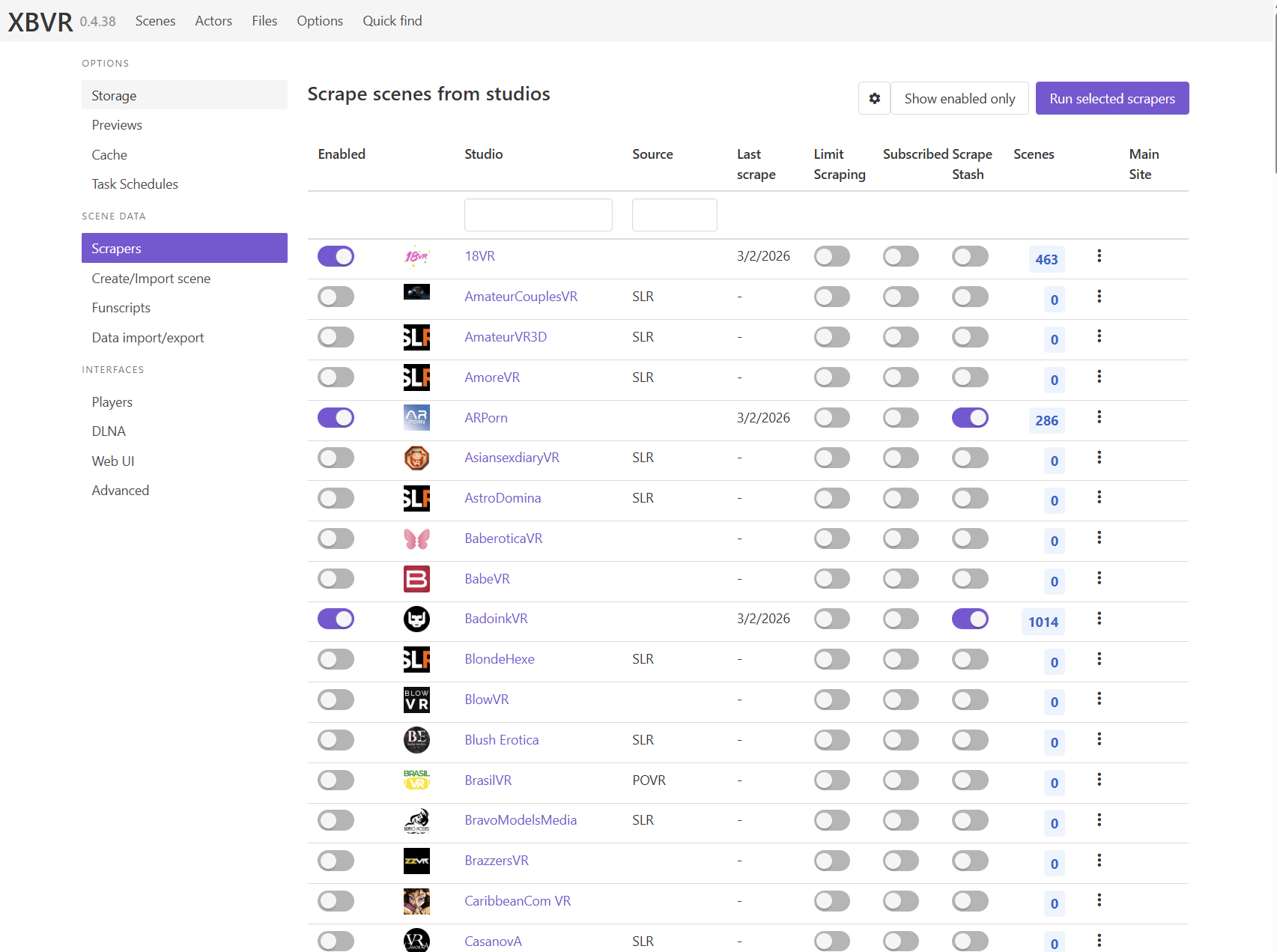
The scrapers pull scene titles, performer names, tags, thumbnails, release dates, and more from dozens of VR studios. This data is what makes XBVR so powerful — without it, your files are just filenames.
Step 2: Add Your Video Folders
- Go to Options → Folders
- Type in the full path to your VR porn folder and click "Add new folder"
- Windows example:
C:\VRPorn\ - Mac/Linux example:
/home/username/VRPorn/ - Docker example:
/videos/(mapped from your host in docker-compose)
- Windows example:
- You can add multiple folders if your collection is spread across drives
- Click "Rescan all folders" after adding them
- XBVR will scan the files and try to match them against the scraped metadata
Step 3: Check Your Matches
- Go to the Files section
- Matched — these files were automatically identified. Check a few to make sure they're correct
- Unmatched — these files couldn't be auto-identified. Click the match button on each one and manually select the correct scene
Common reasons files don't match: filenames are too mangled, the scraper for that specific studio hasn't been run, or the file is from a lesser-known studio that XBVR doesn't scrape.
Tip: The more consistently your files are named, the better the auto-matching works. If you're downloading new content, try to keep the original filenames from the studio.
Step 4: Browse Your Library
Go back to the main Scenes page. You should now see your library with thumbnails, tags, performer names, and all the metadata. You can:
- Filter by studio, performer, tag, rating, resolution
- Sort by date, rating, duration, etc.
- Search for specific scenes or performers
- Create saved searches for quick access to your favorites
Connecting Your Headset
This is where the magic happens — browsing and streaming your library inside VR.
With DeoVR (Free)
DeoVR is free and available on the Quest Store, so it's the easiest option.
- In XBVR, go to Options → Players
- Note the XBVR IP address — it looks something like
http://192.168.1.100:9999 - In your Quest headset, open DeoVR
- XBVR should appear automatically as a DLNA source in DeoVR's media browser
If it doesn't appear automatically:
- In DeoVR, go to the web browser section
- Type in your XBVR IP address (e.g.,
http://192.168.1.100:9999) - You should see the XBVR interface and can browse/play from there
Bonus: Saved Searches as DeoVR Lists
In XBVR, create a filter (e.g., "VR Bangers only" or "8K scenes") and save it as a Saved Search. When creating the saved search, check the "Use as DeoVR list" option. This list will now appear directly in DeoVR's interface.
With HereSphere ($20 — Recommended)
HereSphere is the premium option — better playback controls, better interactive toy support, and deeper XBVR integration. It's $20 on Steam or available as a standalone Quest app from itch.io.
- In XBVR, go to Options → Players
- Note the XBVR IP address
- Click the HereSphere tab and enable the toggles for:
- File deletion (lets you delete files from within VR)
- Data sync (syncs watch status, ratings, etc.)
- In your Quest headset, open HereSphere
- Go to the web browser inside HereSphere
- Type in your XBVR IP address and add
/heresphereto the end:http://192.168.1.100:9999/heresphere - Press the Web API button (looks like a play button on 4 tiles, to the left of the URL bar)
- You should now see your full XBVR library with thumbnails inside HereSphere
Important: Use the Web API button, not just regular browser navigation. Regular browsing shows a 2D webpage — the Web API mode gives you the full VR browsing experience with thumbnails and immersive playback.
Why HereSphere is Worth the $20
HereSphere has one killer feature that makes it essential: easy perspective alignment. If a scene feels slightly off — camera angle is too high, too low, or shifted — you can hold the grip button (the one on the underside of your controller) and drag the entire viewpoint into the perfect position. No menus, no fiddling. Just grab and move. Once you've used this, you'll never want to go back to DeoVR.
Beyond alignment, the settings in HereSphere are incredibly deep. You can fine-tune lens correction, adjust IPD offset, change projection types, tweak color grading, set per-scene zoom levels, and more. It's overkill for casual viewing, but if you care about getting the best possible image from every scene, nothing else comes close.
You can get HereSphere on Steam or as a standalone Quest app from itch.io.
Tips and Tricks
Keep XBVR Running
XBVR needs to be running on your PC/NAS whenever you want to stream. If you're on Windows, you can add it to your startup programs so it launches automatically. On Docker, use restart: unless-stopped (already included in the docker-compose above).
Use 5GHz WiFi
Streaming VR video over WiFi requires decent bandwidth. Always use a 5GHz WiFi connection — 2.4GHz will buffer, especially with 6K or 8K content. If your router supports WiFi 6, even better.
Naming Your Files
XBVR matches files based on filenames. The more info in the filename, the better the match. Ideal format:
StudioName - Scene Title - PerformerName.mp4
If you're downloading from studios, keep the original filename and it'll usually match perfectly.
Interactive Scripts
If you use interactive toys (Kiiroo Keon, The Handy, etc.), XBVR can manage your funscript files too. Place .funscript files in the same folder as the video with the same filename, and XBVR will match them together. HereSphere picks these up automatically for haptic playback.
Performance with Large Libraries
If you have thousands of scenes and things start getting slow, consider switching from SQLite (the default database) to MariaDB. The XBVR wiki has a guide for this. For most people with under 1,000 scenes, SQLite is fine.
Raspberry Pi
XBVR runs on Raspberry Pi, which makes it a cheap always-on server option. Download the ARM release from the releases page.
Troubleshooting
XBVR won't start / port 9999 in use
Something else is using port 9999. Either close the conflicting program or launch XBVR with a custom port: xbvr --web_port 9998
Files show as "Unmatched" Run the scrapers first (Options → Scene Data → Run all), then rescan your folders. If they still don't match, the filename might be too different from what the studio uses — try manual matching.
Can't connect from headset Make sure your headset and PC/NAS are on the same WiFi network (same subnet). Check that your firewall isn't blocking ports 9999 and 9998. Try restarting your router, PC, and headset.
HereSphere shows 2D webpage instead of VR
You need to use the Web API mode, not regular browsing. Append /heresphere to the URL and press the Web API button (4 tiles icon), not just Enter.
Streaming is buffering Switch to 5GHz WiFi if you're on 2.4GHz. For 8K content, even 5GHz can struggle — consider downloading files to the headset instead, or lowering the streaming quality in your player settings.
Thumbnails not loading Run the scrapers again — thumbnails come from the scraped metadata. If the scene is from a studio XBVR doesn't support, there won't be thumbnails.
What's Next?
Once you've got XBVR running, check out our other guides:
- Meta Quest 3 Setup Guide — Complete setup for the most popular headset
- DeoVR vs HereSphere — Which player is right for you
- Interactive Toys Guide — Setting up Kiiroo Keon, The Handy, and Lovense with VR content
XBVR is a free, open-source project maintained by volunteers. If you find it useful, consider starring the project on GitHub or joining their Discord to say thanks.